Zoho CRM Website Form Integration: Turn Every Enquiry Into a Lead
Key takeaways
- There are three main options: Zoho's own web-to-lead forms, plugins for platforms like WordPress, and a custom API connection.
- Capture the lead source and page on every submission so you know which marketing works.
- Send an instant auto-response and create a follow-up task so no enquiry waits.
- Add spam protection so your CRM doesn't fill with junk leads.
- Ask only for what you need on the form; shorter forms get more submissions.
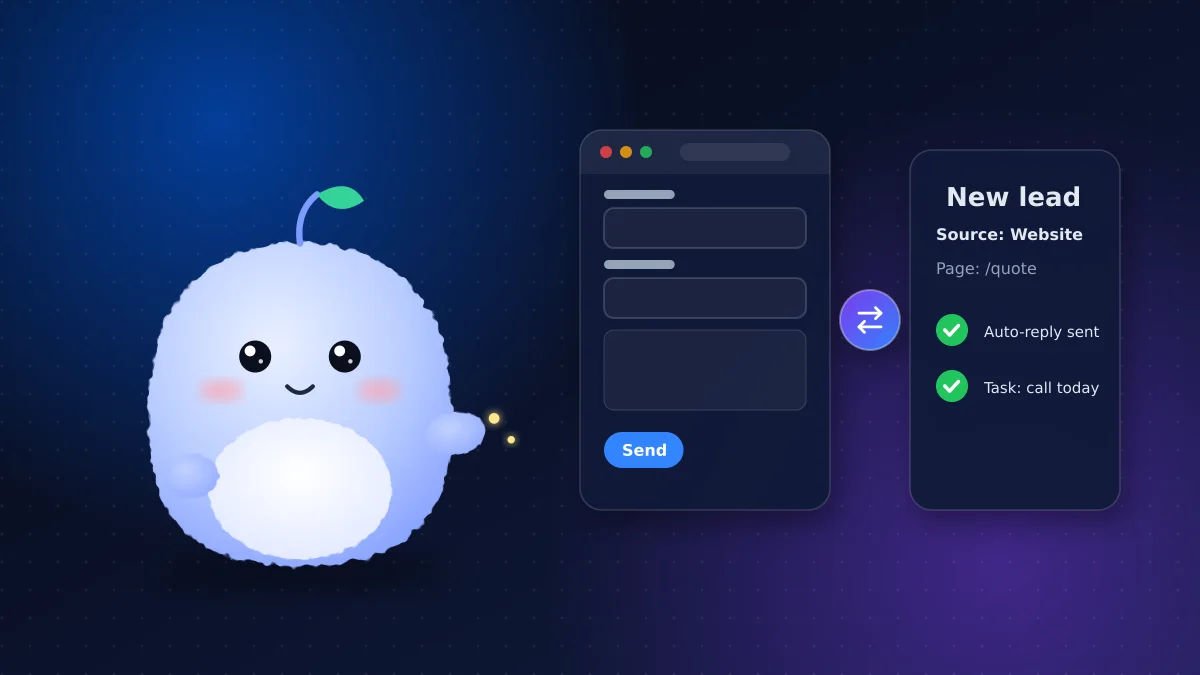
If enquiries from your website arrive as emails that someone copies into a spreadsheet or CRM by hand, some of them will slip through. Connecting your website forms to Zoho CRM fixes that: every submission becomes a lead automatically, assigned to the right person, with a follow-up already scheduled.
Here's how Zoho CRM website form integration works and how to choose the right approach for your site.
Three ways to connect your website to Zoho CRM
| Option | How it works | Best for |
|---|---|---|
| Zoho web-to-lead form | Build the form in Zoho CRM and embed it on your site | Simple contact forms, fastest setup |
| Platform plugin | A plugin for WordPress or another platform sends submissions to Zoho | Sites already built on that platform |
| Custom API connection | Your site's own form sends data to Zoho CRM through its API | Custom-built sites and multi-step forms |
Option 1: Zoho web-to-lead form
A web-to-lead form is built inside Zoho CRM and embedded on your site with a snippet of code. Submissions create leads directly. It's quick and needs no extra software, but styling it to match your site can be fiddly, and complex multi-step forms are harder.
Option 2: WordPress and other platform plugins
If your site runs on WordPress, plugins can connect your existing forms to Zoho CRM. Zoho publishes its own Zoho CRM plugin on WordPress.org, and popular form builders also offer Zoho connectors. This keeps your forms looking native while sending data to the CRM.
Option 3: Custom API connection
For custom-built websites, including those built with frameworks like Next.js, the form can send data to Zoho CRM through its API. This gives full control: multi-step forms, file uploads, duplicate checks and routing rules. It takes more development, and the connection needs secure storage of credentials and error handling so no submission is lost if Zoho is briefly unreachable.
What to capture with every lead
The form fields are only part of the picture. Capture these behind the scenes too:
- Lead source: website, Google Ads, Google Business Profile, referral, social media
- Page: which page the form was submitted from
- Campaign details: campaign tags from ad links, if you run ads
- Form type: contact, quote, booking or download
- Consent: whether the person ticked a box to receive marketing emails, with the date
Lead source tracking is what lets you see which marketing actually brings in business, rather than guessing.
Automate what happens next
Getting the lead into Zoho is step one. Step two is making sure someone acts on it.
- Auto-response: an instant email confirming you received the enquiry and when to expect a reply
- Assignment: route the lead to the right person by service, location or round robin
- Follow-up task: a task due the same day or the next morning
- Escalation: an alert to a manager if the lead hasn't been contacted within a set time
Speed matters. A prospect who enquires with three businesses often goes with the first one that replies properly.
Spam protection
Public forms attract spam, and spam leads waste time and skew your reports. Protect the form with:
- A CAPTCHA or invisible bot check
- A hidden honeypot field that bots fill in and people don't
- Rate limiting on how often a form can be submitted
- Validation of email and phone formats before submission
Beyond the contact form
The same approach works for other ways people reach you online:
- Booking tools: a new booking creates or updates a lead and logs the appointment
- Chatbots: a chat that ends with contact details becomes a lead, with the conversation attached
- Quote calculators: the chosen options are saved on the lead so your reply can be specific
- Downloads: someone who downloads a guide becomes a lead, with consent recorded if they opted in to emails
Connecting every entry point means your CRM shows the whole picture of who's interested, not just the people who filled in one form.
Keep the form short
Every extra field reduces submissions. Ask for what you need to reply well, usually a name, email or phone, and a short message or a choice of service. You can collect more details later in the conversation.
Testing before launch
- Submit the form from a phone and a desktop
- Check the lead appears in Zoho CRM with the right source, owner and fields
- Confirm the auto-response arrives and isn't marked as spam
- Check the follow-up task and any alerts fire
- Test what happens when a required field is missing
If you're building or rebuilding your site at the same time, plan the CRM connection from the start; it's easier than adding it later. Our business website builds include form integrations as standard.
Measuring the results
Once forms flow into Zoho CRM, review a simple monthly report: leads by source and page, how quickly each was contacted, and how many became customers. If one page brings plenty of leads that never convert, the problem may be the offer or the form, not the traffic.
Conclusion: every enquiry, tracked and followed up
A good Zoho CRM website form integration means no enquiry gets lost, every lead shows where it came from and someone is reminded to follow up quickly. Pick the option that fits your site, capture the lead source, automate the next step and keep spam out.
Want your website and Zoho CRM working together? See our Zoho CRM integration service or tell us about your site.
Frequently asked questions
How do I connect my website form to Zoho CRM?
Use a Zoho web-to-lead form embedded on your site, a plugin for platforms such as WordPress, or a custom connection through the Zoho CRM API for custom-built sites.
Can Zoho CRM track where my leads come from?
Yes. Capture the lead source, page and campaign details with each submission so you can see which marketing brings in business.
How do I stop spam leads in Zoho CRM?
Add a CAPTCHA or bot check, a hidden honeypot field, rate limiting and email and phone validation to your website forms.
Can Zoho CRM reply to website enquiries automatically?
Yes. Set up an auto-response email for new leads, plus assignment rules and a follow-up task so a person replies quickly.
Can Zoho CRM work with a custom-built website?
Yes. A custom site can send form submissions to Zoho CRM through its API, which allows multi-step forms, file uploads and custom routing rules.
Vaibhav Malhotra
Founder, VMR Technologies
Vaibhav Malhotra is the founder of VMR Technologies, where he leads the team building custom websites, e-commerce platforms, and AI solutions for businesses across the Greater Toronto Area and beyond. He writes about practical software and AI strategy for non-technical decision-makers — focused on what actually drives results rather than hype.