How to Migrate to Zoho CRM From Spreadsheets, HubSpot or Salesforce
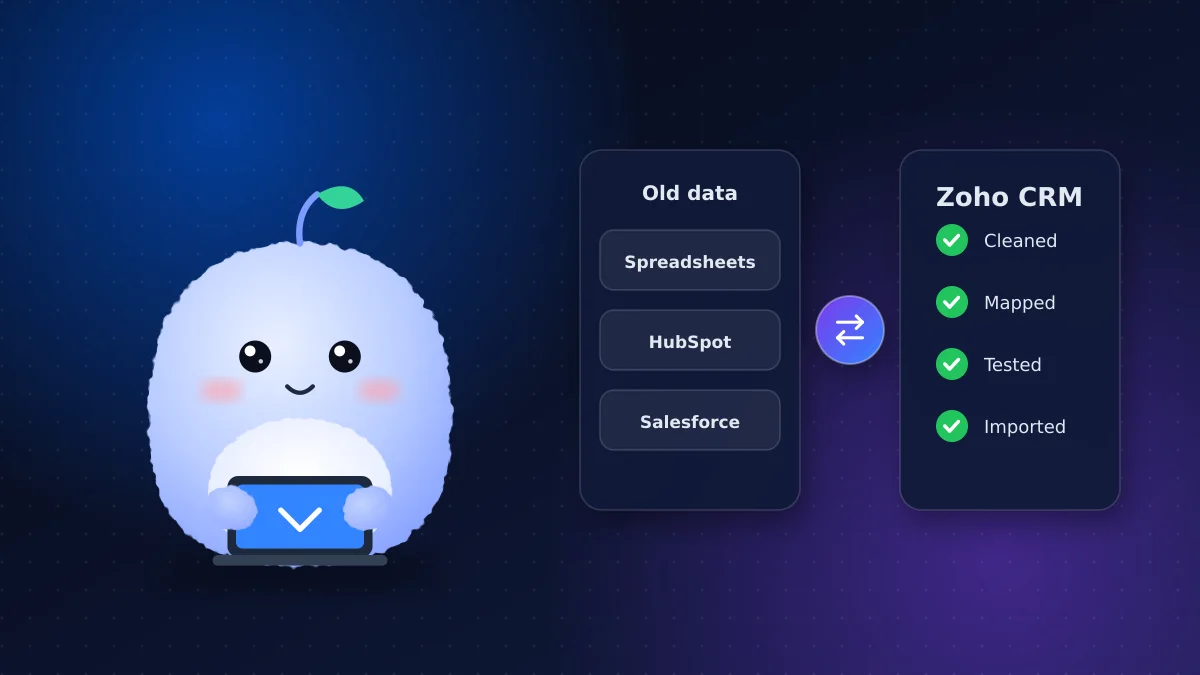
Key takeaways
- Clean and de-duplicate your data before migration; it's much harder afterwards.
- Field mapping decides where every old field lands, so agree on it in writing.
- Import in order: companies, then contacts, then deals and activities, so links between records survive.
- Always run a test import on a sample and check it before the full move.
- Plan a short freeze on the old system so no new data is lost during the switch.
Moving your customer data is the riskiest part of any CRM project. Done carelessly, it creates duplicate contacts, deals with no company attached and years of history that quietly disappear. Done carefully, your team opens Zoho CRM on day one and finds everything where they expect it.
This guide covers how to migrate to Zoho CRM from the three most common starting points: spreadsheets, HubSpot and Salesforce.
Step 1: Take stock of your data
Before touching Zoho, list everything you have:
- Where customer data lives today: spreadsheets, an old CRM, email, accounting software
- Roughly how many contacts, companies and deals there are
- Which fields you actually use and which are empty or outdated
- Notes, emails, files and activity history you need to keep
Not everything needs to move. Contacts who haven't engaged in years, test records and abandoned fields can be archived instead of migrated.
Step 2: Clean the data first
Cleaning is easier in a spreadsheet than inside a new CRM. Focus on:
- Duplicate records: the same person or company entered twice, often with small spelling differences such as "Ltd." and "Limited"
- Formatting: consistent phone numbers, provinces, postal codes and capitalization
- Missing key fields: records without an email or phone number may not be worth importing
- Old statuses: map outdated stages to your new pipeline
Zoho CRM can check for duplicates during import, but only on the fields you choose, so cleaning up front still matters.
Step 3: Field mapping
Field mapping is the plan for where each old field goes in Zoho CRM. Create a simple table:
| Old system field | Zoho CRM field | Notes |
|---|---|---|
| Company name | Account Name | Accounts are Zoho's companies |
| Contact owner | Contact Owner | Match old users to new users |
| Lead source | Lead Source | Agree on the list of values first |
| Deal stage | Stage | Map old stages to your new pipeline |
| Custom field | New custom field or skip | Decide before importing |
Pick-list values deserve special attention. If your old system says "Referral - Client" and Zoho's list says "Referral", values that don't match may not import as you expect.
Step 4: Get the import order right
Records are linked: deals belong to companies and contacts, and activities belong to records. Import in this import order so the links survive:
- Users (so records can be assigned to the right owner)
- Accounts (companies)
- Contacts, linked to accounts
- Leads, if you keep them separate from contacts
- Deals, linked to accounts and contacts
- Notes, tasks, activities and attachments
Migrating from each source
From spreadsheets
Spreadsheets are the most common starting point for small businesses. Save each tab as a CSV file (accounts, contacts, deals), clean it, and use Zoho's import tool with your field mapping. Expect the most cleanup here, because spreadsheets rarely enforce consistent data.
HubSpot to Zoho
Zoho has a built-in migration path for HubSpot, which Zoho documents in its help article on migrating from HubSpot. Before you start a HubSpot to Zoho move, review your HubSpot properties, lifecycle stages and pipelines, and decide how each maps to Zoho CRM. Marketing email history and workflows don't move as-is; plan to rebuild the automations you need.
From Salesforce
Salesforce exports come as data files, often with attachments. Map Salesforce objects to Zoho modules, check custom objects carefully and rebuild validation rules and automations rather than expecting them to transfer.
Step 5: Run a test import
Never do the full migration first. Instead:
- Import a sample of 50 to 100 records across every module
- Check that fields landed correctly and records are linked
- Look for duplicates, missing values and wrong owners
- Fix the mapping and repeat until the sample is clean
Only then run the full import.
Step 6: Switch over cleanly
- Pick a cutover date and tell the team
- Freeze the old system for a day or two so no new data is added there
- Run the final import and spot-check key accounts
- Keep the old data in read-only form for a few months in case something needs checking
After the migration: the first two weeks
Migration isn't finished when the import completes. In the first two weeks:
- Ask each team member to check their own key accounts and deals
- Keep a shared list of anything that looks wrong, and fix it in batches
- Watch for duplicates created by people adding records that already exist
- Confirm reports and dashboards match what you expected from the old system
- Turn on automations only after the data has been checked, so they don't fire on bad records
A short, focused review now prevents months of small frustrations that make people stop trusting the CRM.
Common migration mistakes
- Importing before cleaning, then fighting duplicates for months
- Importing contacts before companies, so links break
- Forgetting notes, files and activity history until after cutover
- Letting people keep working in the old system after the switch
For a sense of how migration fits into the overall budget, see our guide to Zoho CRM implementation cost.
Who should own the migration?
Name one person on your side who decides what moves, how fields map and when the cutover happens. Without a single owner, decisions stall and people keep working in the old system. Even if a consultant does the technical work, your owner checks the test import and signs off before the final move.
Conclusion: slow down to move fast
The safest way to migrate to Zoho CRM is to clean first, map every field, import in order and test before the final move. An extra few days of preparation saves months of fixing bad data.
Want your data moved without the headaches? Learn about our Zoho CRM migration and setup or tell us where your data lives today.
Frequently asked questions
Can I migrate from HubSpot to Zoho CRM?
Yes. Zoho has a built-in migration path for HubSpot. You still need to map properties, stages and pipelines, and rebuild any automations you want to keep.
How do I avoid duplicates when migrating to Zoho CRM?
Clean and de-duplicate your data before importing, choose the fields Zoho should check for duplicates, and run a test import on a sample first.
What order should I import data into Zoho CRM?
Users first, then accounts, contacts, leads, deals, and finally notes, tasks, activities and attachments, so links between records survive.
Will my email history move to Zoho CRM?
It depends on the source. Some history can be imported, but marketing email history and workflows usually don't transfer as-is and need to be rebuilt.
How long does a Zoho CRM migration take?
For a small business with clean data, a few days of preparation and testing plus a short cutover. Messy data from several sources takes longer, mostly in cleanup.
Vaibhav Malhotra
Founder, VMR Technologies
Vaibhav Malhotra is the founder of VMR Technologies, where he leads the team building custom websites, e-commerce platforms, and AI solutions for businesses across the Greater Toronto Area and beyond. He writes about practical software and AI strategy for non-technical decision-makers — focused on what actually drives results rather than hype.